

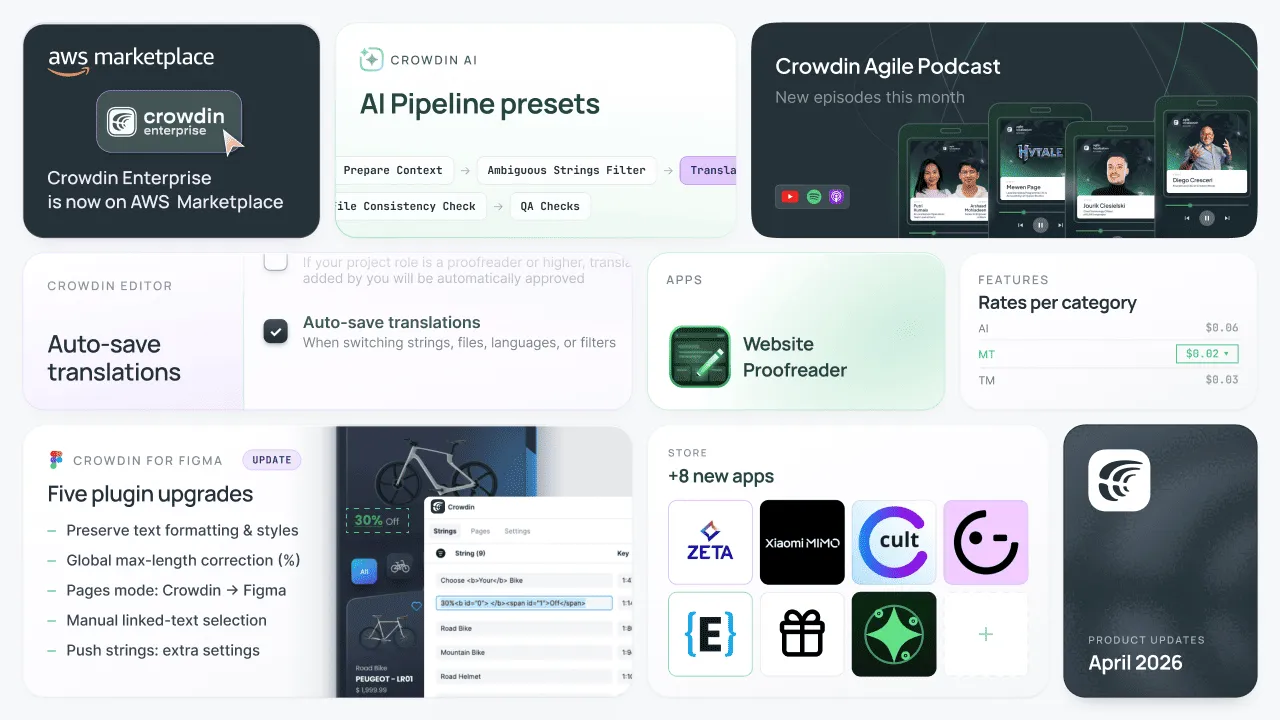
The headline updates are custom instructions and additional context for AI pre-translation, AI Pipeline presets to help you deploy complex workflows in seconds and major enhancements to our Crowdin plugin for Figma.
Beyond this, we’re excited to announce that Crowdin Enterprise is now available on the AWS Marketplace. We’ve also added category-based proofreading rates for better budget control and a highly requested auto-save feature in the Editor.
Here’s a closer look at everything we shipped in April.
AI Pipeline: new Presets and AI model control
We have updated the AI Pipeline to help you deploy multi-step prompts faster. The refreshed UI focuses on helping you reduce hallucinations by improving structure and clarifying cost-to-performance controls.
New: AI Pipeline Presets
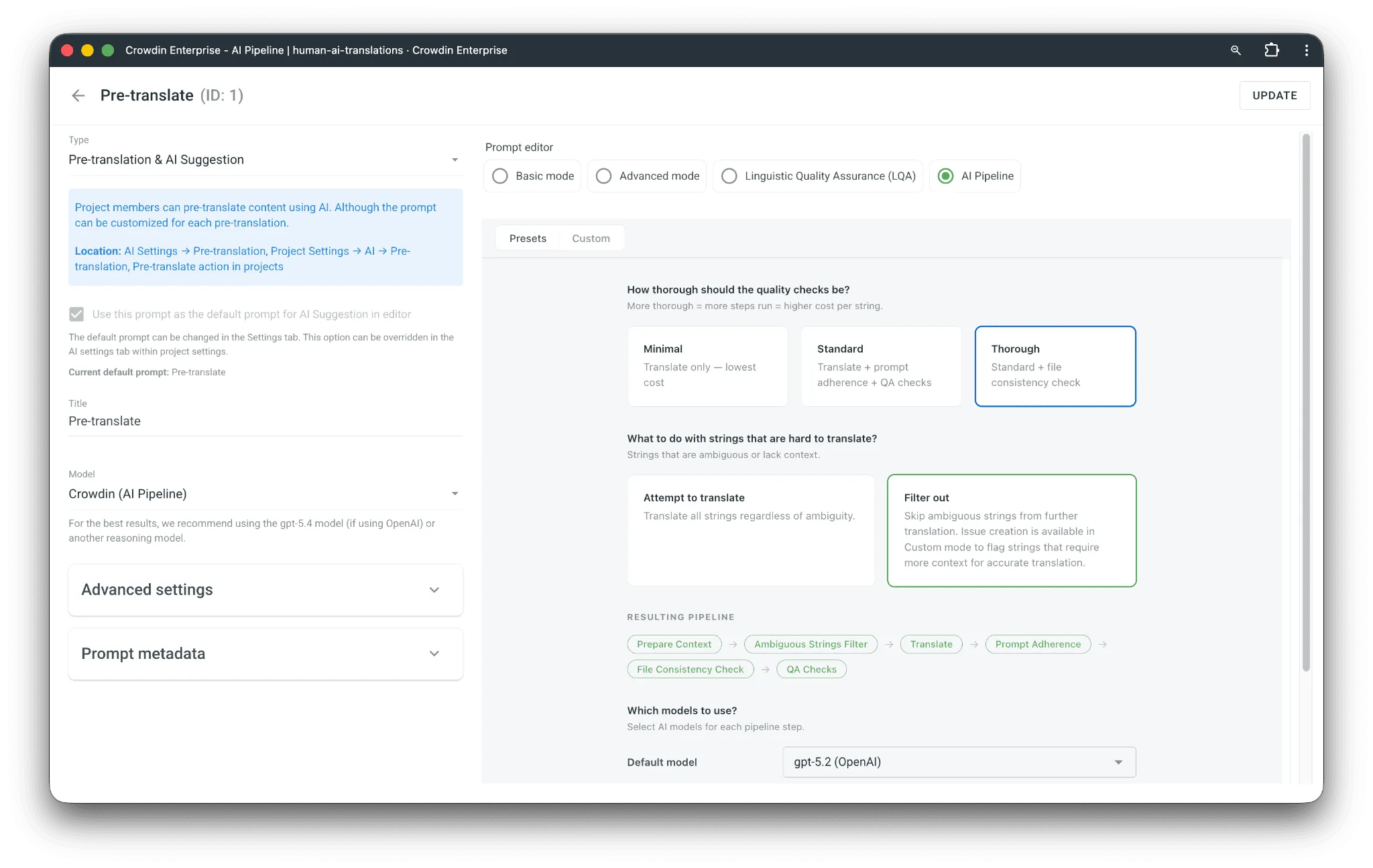
Instead of building every workflow from scratch, you can now choose from three predefined quality levels:
- Minimal: Translation only – the fastest and lowest-cost option.
- Standard: Adds prompt adherence and QA checks.
- Thorough: Adds file consistency checks for maximum accuracy.
Smart filtering for ambiguous strings
Choose how to handle “hard-to-translate” content:
- Attempt to translate: Forces the AI to translate regardless of context.
- Filter out: Automatically skips ambiguous strings and flags them for manual review to avoid AI guesses.
Granular model assignment
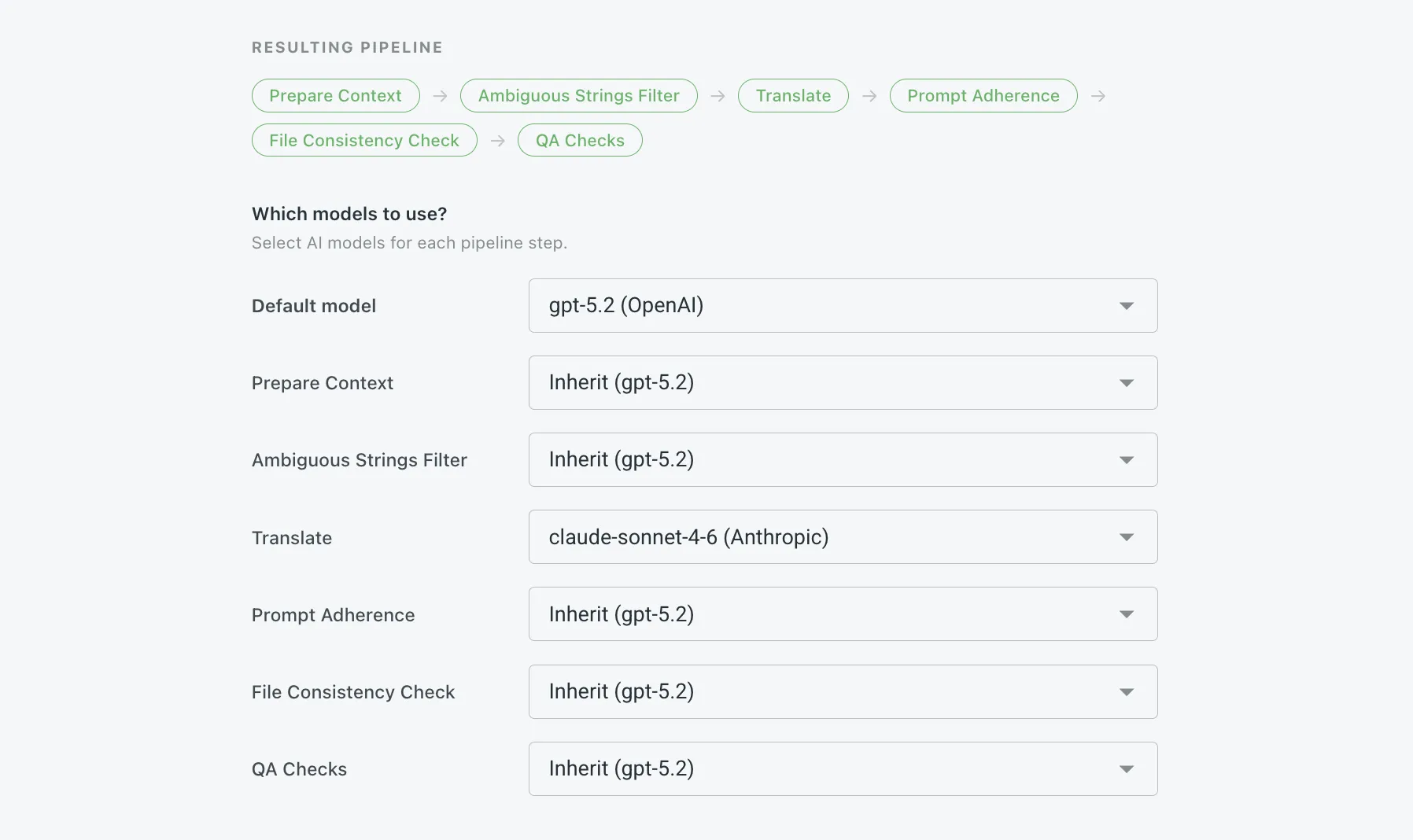
You can now assign different AI models to each specific step of a single pipeline. For example, use a faster model for Context Preparation and a high-reasoning model for the Translate and QA steps.
Enhanced Transparency
When starting a pre-translation, you can now see the full list of AI providers (OpenAI, Google Gemini, Anthropic, etc.) assigned to that specific prompt directly in the interface.
Custom mode is still available for users who need to build their workflows from scratch.
AI Pre-translation: Now with Custom Context and Instructions
Until now, AI pre-translation mostly relied on what the model could figure out from the source text and existing project assets. But sometimes, you have specific knowledge about a file that only a human knows—like how a particular set of placeholders will be used or a strict “no-touch” rule for formatting.
With our latest update, you can now add custom instructions and context directly to your AI pre-translation prompts. This gives you “micro-control” over how the AI handles different scenarios, ensuring the output matches your specific technical or stylistic requirements from the very first string.
How It Works
When setting up a pre-translation via AI, you’ll find a new option to include custom prompts. You can use this to provide the AI with the exact “missing pieces” it needs to be accurate:
- Handling Placeholders: Tell the AI exactly what your variables represent. For example: “This file contains many placeholders that will be replaced with project names in the nominative case.”
- Formatting Rules: Set strict boundaries to avoid technical errors. For example: “Do not format or convert any numbers during translation.”
- Tone and Style: Go beyond generic settings by adding specific file-level guidance like: “This is a technical FAQ; keep instructions short and use the imperative mood.”
Why It Matters
This isn’t just about saving time; it’s about precision. By giving the AI this extra layer of context, you reduce the number of corrections your proofreaders need to make later. It’s especially useful for complex files where the AI might otherwise guess incorrectly about how a UI element functions or how a sentence should be structured.
Ready to fine-tune your results? You can find these new options in the Pre-translate dialog, under Advanced Settings > Custom instruction.
How many hours do you think your team could save if the AI understood your placeholders before the first edit?
Localize your product with Crowdin
Crowdin Enterprise is now on AWS Marketplace
The news you could have seen on our socials earlier. You can now subscribe to Crowdin Enterprise directly through the AWS Marketplace.
This means you can consolidate your Crowdin Enterprise subscription into your single AWS bill and use your existing cloud credits. It’s the same platform, just the billing handled through the infrastructure you already use.
Check out our AWS Marketplace listing.
Fairer budgets: Category-based proofreading rates
Managing a localization budget is often a game of nuances. Proofreading a string that was already a 101% Translation Memory (TM) match takes much less effort than reviewing a raw machine translation or an AI-generated draft. Until now, setting different rates for these scenarios often required manual workarounds or “average” pricing that didn’t reflect the true effort. We changed this.
- How it works now: In your project’s rate settings, you can now define specific prices for proofreading based on the origin of the translation: TM match, Machine Translation (MT), or AI.
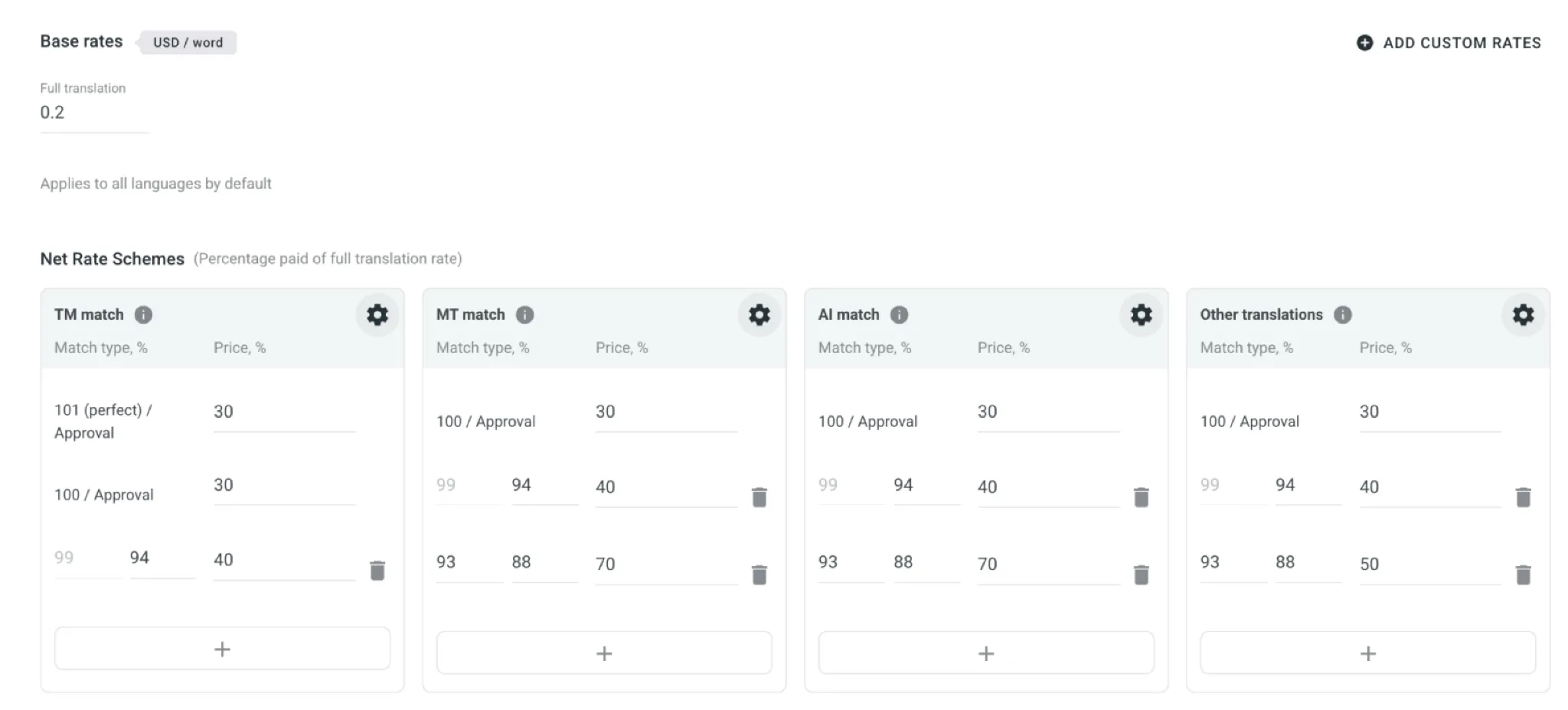
- Why it matters: This allows you to build a genuinely fair payment scheme. You stop overpaying for “light” reviews of high-quality TM matches, while ensuring your linguists are compensated correctly for the heavier lifting required when working with AI or MT drafts. It’s better for your budget and fairer for your team.
- To enable, please go to Reports > Translation cost report > Advanced Settings > choose Use category-based approval rates.
Auto-save in the Editor
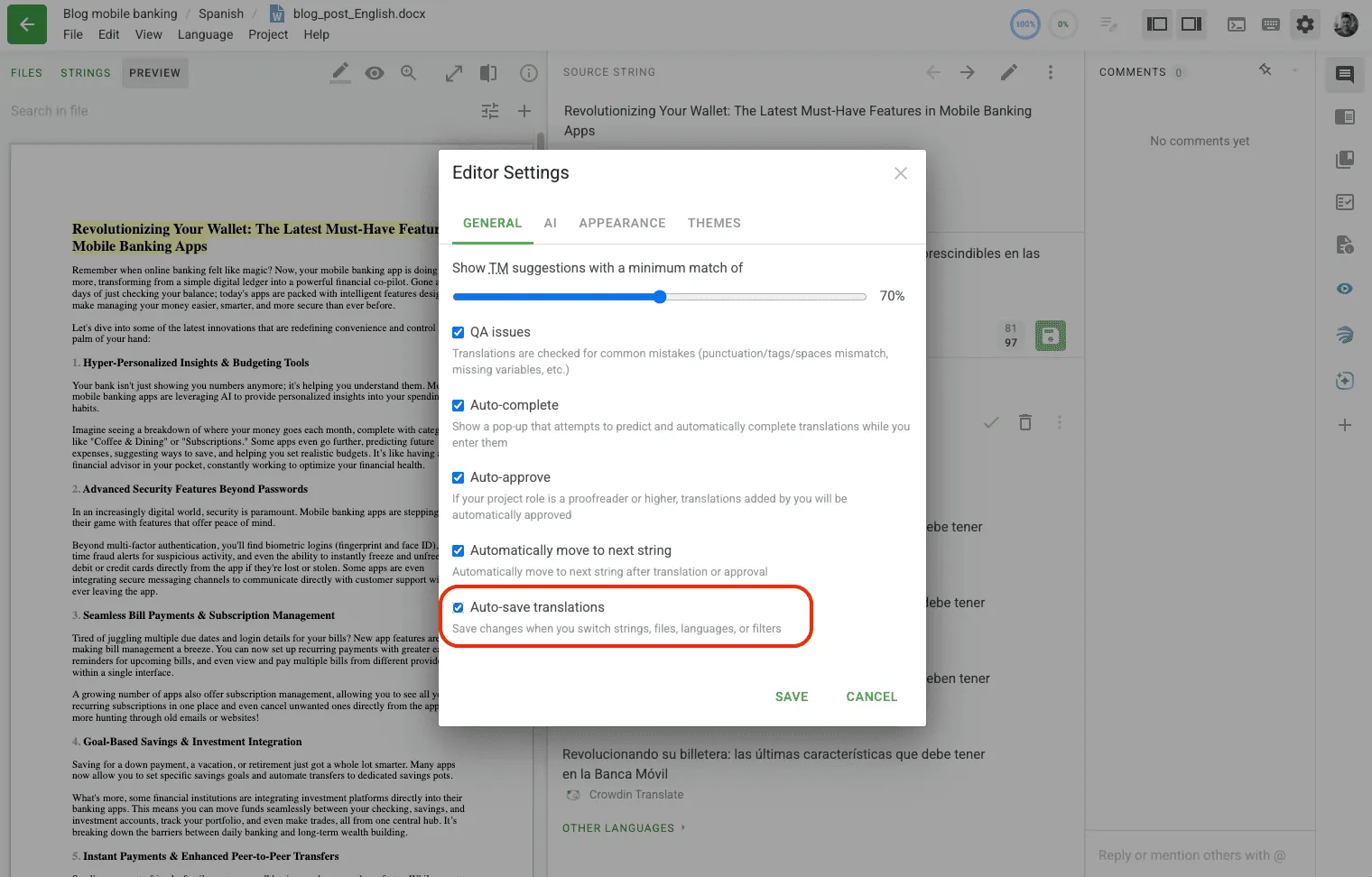
We know how frustrating it is to spend time on a translation and lose it because you forgot to hit the Save button. To make your workflow smoother and more secure, we have added the Auto-save feature in the Crowdin Editor.
How to enable: Open the Editor Settings → General tab → check the “Auto-save translations” box.
Whether you are switching between strings, jumping to a different file, or applying filters, your progress is now protected.
Crowdin plugin for Figma v110
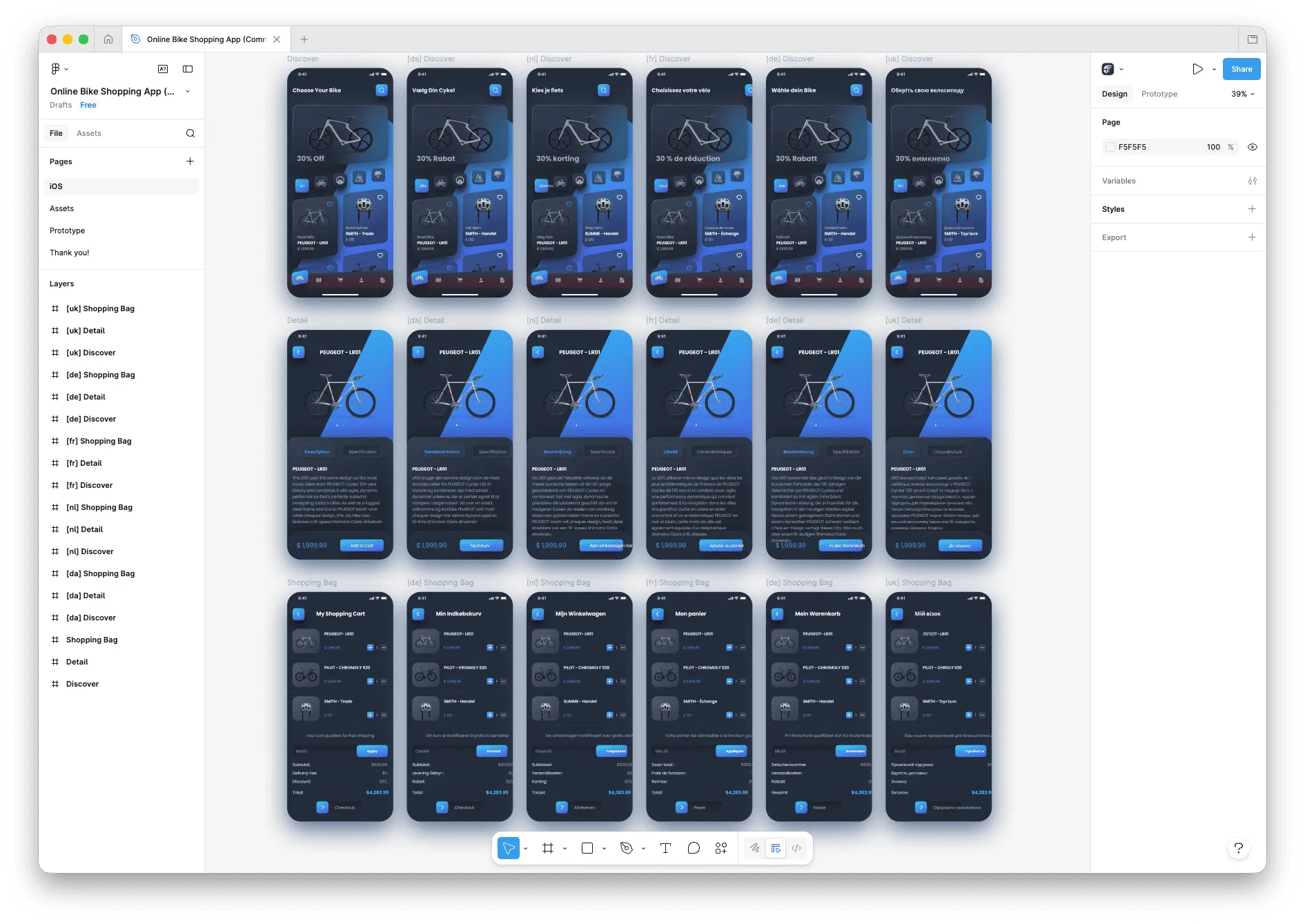
Our Crowdin plugin for Figma received several major updates to help designers and developers stay in sync without breaking the UI.
Preserve mixed text formatting and styles
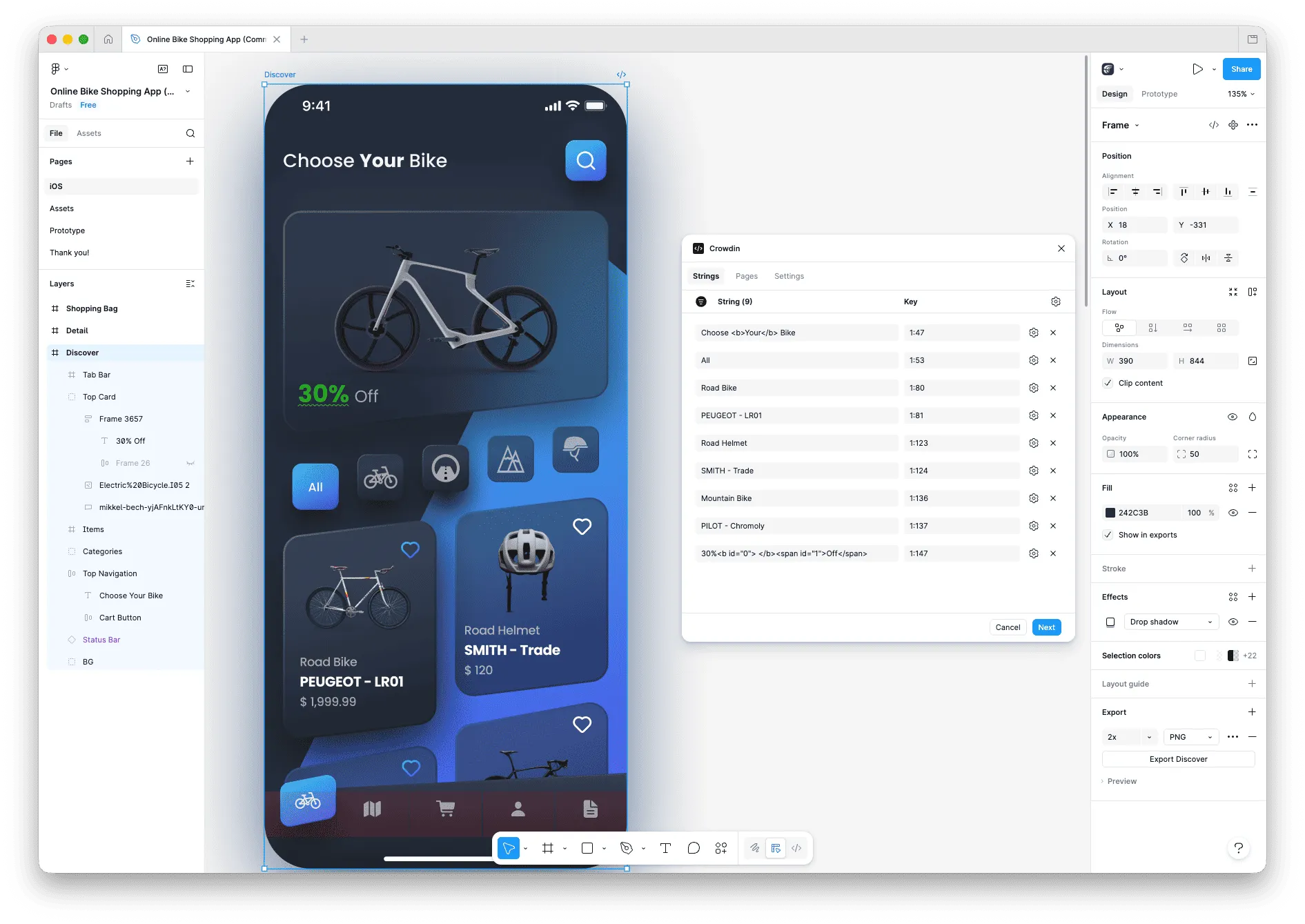
Handling complex text styles just got easier. Our plugin now supports all variations of text decorations, fonts, and spacing – even when you have several different styles within a single text element. When you pull translations back into Figma, the plugin preserves your design choices across every language. If a longer translation shifts a button or alignment, just give it a quick manual adjustment to make it look exactly right.
Consolidate translations on the current page
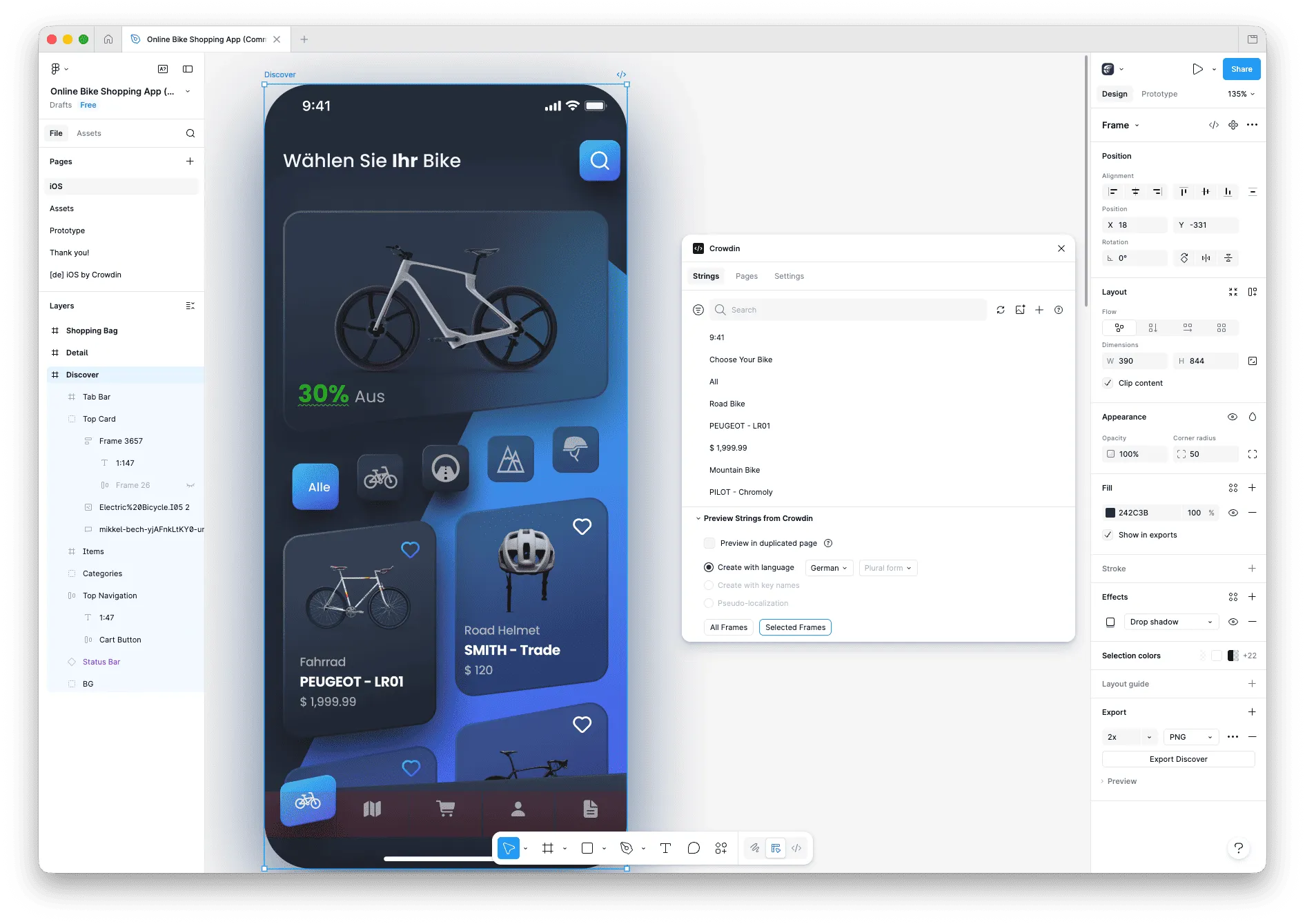
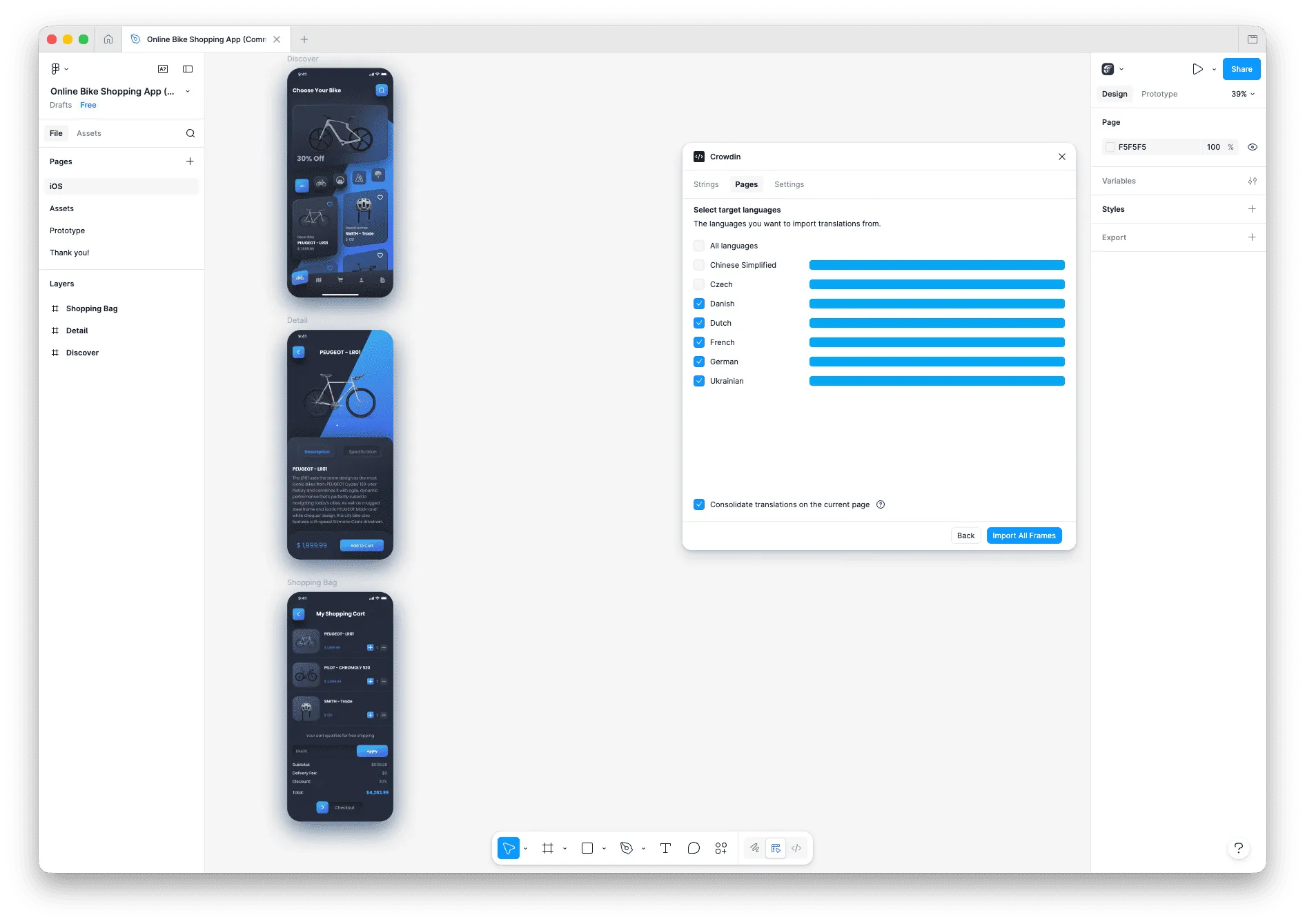
Previously, the plugin always created new pages for each language. Now, you have a choice. We’ve added a new option to the “Pages” mode that lets you consolidate all translated frames directly on your current page, right next to the original designs. This makes it much faster to compare languages and check layout consistency at a glance without switching between pages.
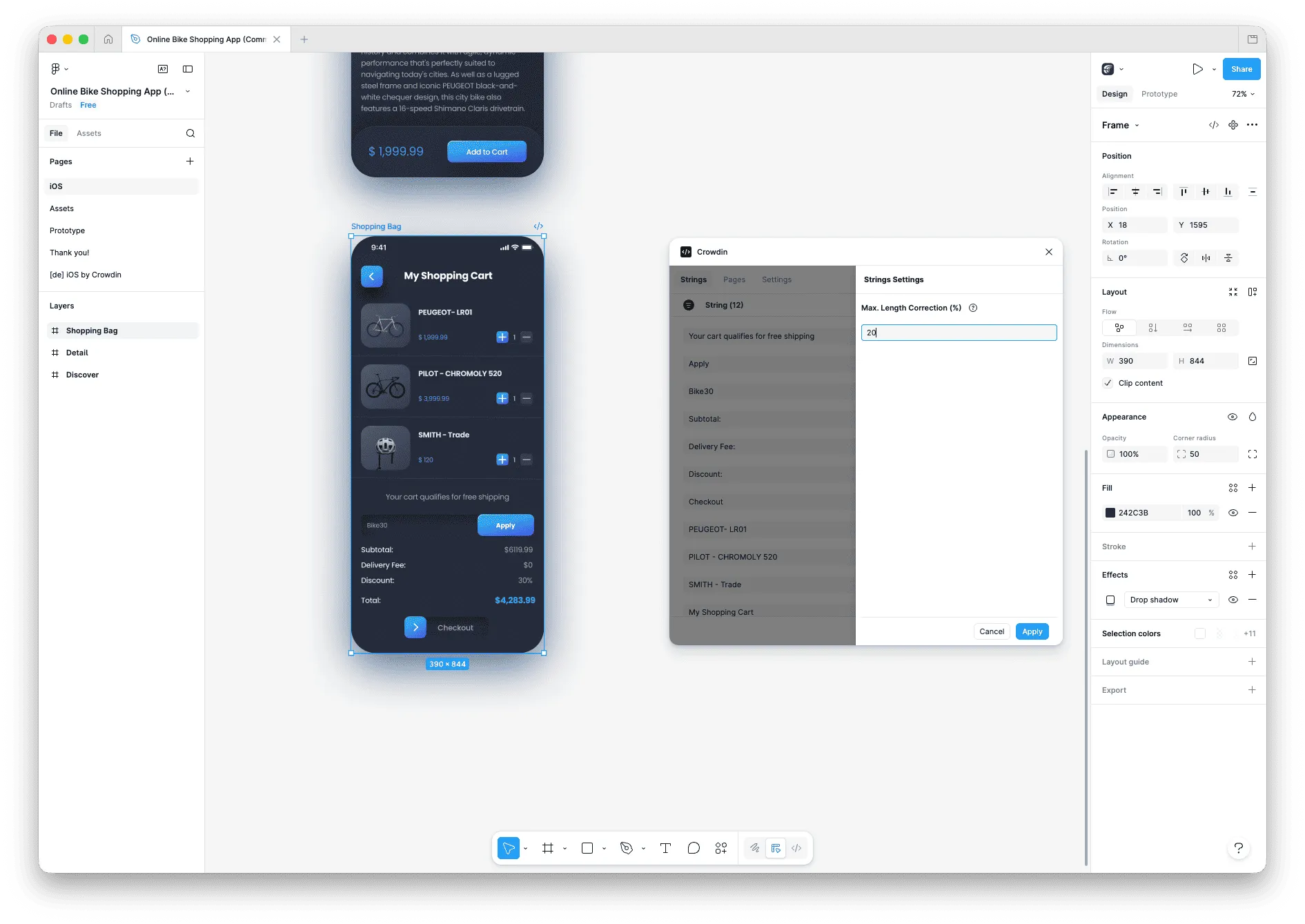
Global max length correction (%)
Managing text expansion is now much easier. Previously, you could only set a maximum length for one string at a time, but now you can apply a global percentage limit to all the strings you are about to push in bulk. This automatically helps keep your translations within the bounds of your design components across the entire project.
Enhanced Update Options for linked strings
You now have more control over your localization data when updating strings from Figma. From the “Update Option” drop-down menu, you can select what happens to existing translations and approvals in Crowdin when you update linked strings whose text has changed:
- Keep Translations and Approvals – Retains both existing translations and their approval statuses; ideal for minor typo fixes.
- Keep Translations – Retains existing translations but removes approval statuses, meaning the translations will need to be reviewed and approved again.
- Clear Translations and Approvals – Removes all existing translations and approvals; use this when the meaning of the source text changes significantly, requiring a fresh translation.
Find all linked elements
We have made it easier to manage and locate your content within Figma. To see every location where a particular string is used while editing it, simply click the “target” icon in the bottom left corner. The plugin will automatically select and highlight all text layers on your current Figma page that are linked to that specific string.
A better way to manage tasks: The new grid view
When you’re managing hundreds of tasks across different vendors and dozens of languages, a simple list just doesn’t cut it. You need to see bottlenecks at a glance without clicking through multiple menus. So this month, we applied some changes to fix this.
We’ve overhauled the All Tasks view into a fully configurable grid. You can now choose exactly which columns you want to see – like status, vendor, priority, or specific dates – and drag them to fit your preferred layout.
We’ve also introduced new filters for Start Date and Resolved Date, which are essential for accurate performance tracking. So basically, instead of a “one-size-fits-all” list, you can have a personalized dashboard. You can create a view that shows only “In Progress” tasks for a specific language that were started this week, helping you catch potential delays before they affect your release schedule.
Localize your product with Crowdin
New apps in the Crowdin Store
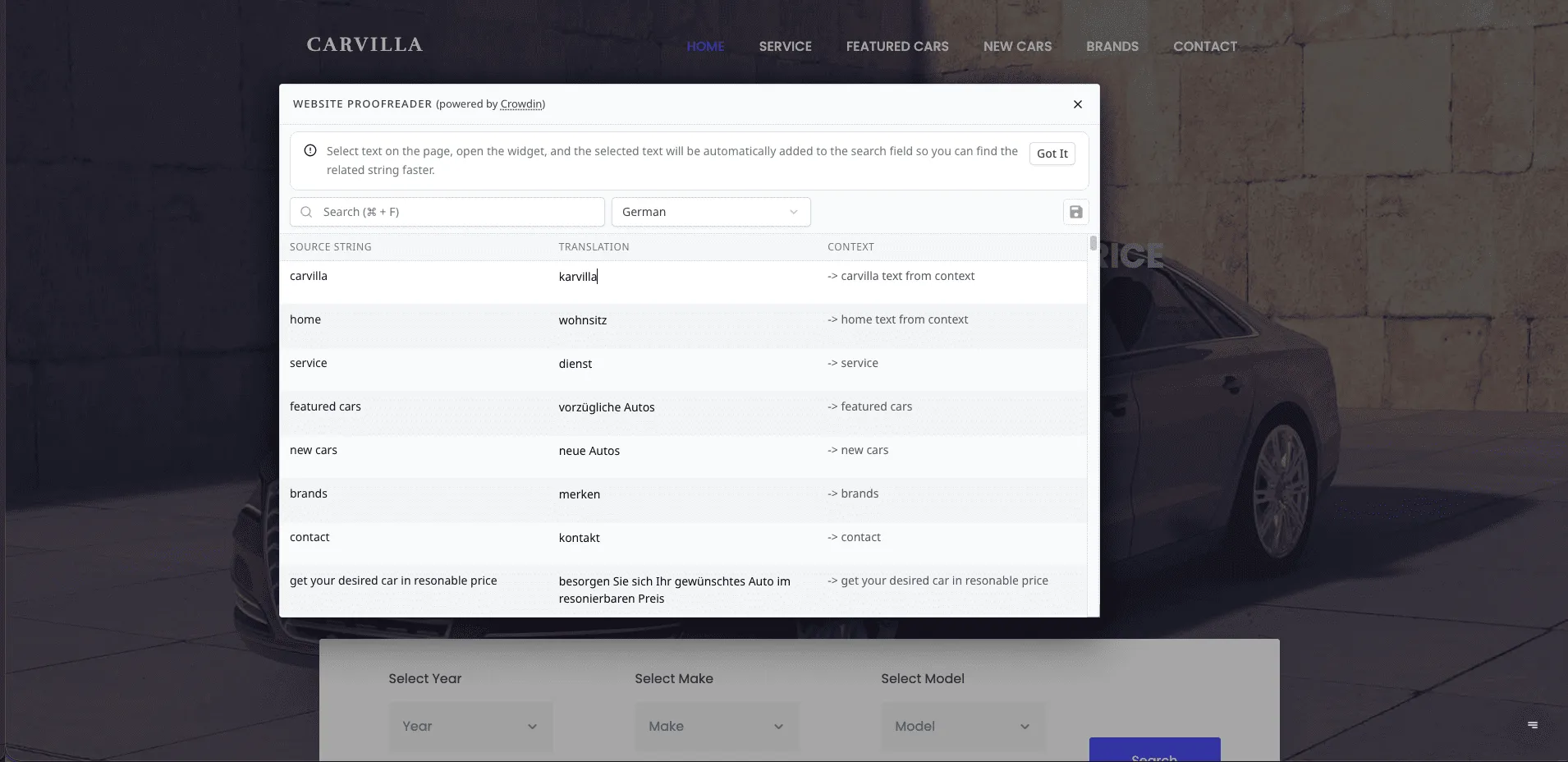
Website Proofreader
Turn your website visitors into a distributed proofreading team. Once you install our new app, Website Proofreader code snippet, a discreet widget appears on your live site, letting native speakers suggest better translations for any text they see – all of which sync directly back to Crowdin for your review.
Xiaomi MiMo
We are happy to expand the list of AI providers in the Crowdin Store with Xiaomi MiMo. We know that not all models are created equal when it comes to Asian languages, so this integration gives you a new option specifically optimized for high-quality translations in those regions.
Zeta Global
Now you can translate your Zeta Global email campaigns directly in Crowdin. Automatically import your templates into Crowdin and sync the localized versions back without any manual work.
Cult Connector (Adobe After Effects)
This app was built by Cult Extensions, who have years of expertise in motion design. They saw a major bottleneck in video localization and decided to build their own Adobe After Effects plugin to fix it. Now, it syncs with Crowdin to automate the entire process. Read more about how it works in our recent blog post.
ELAN AI Bridge
Connect your AI infrastructure directly to your translation projects. ELAN AI Bridge makes it easy to blend ELAN’s language tools into your Crowdin workflow for more efficient localization.
Gleap
Make sure your customers always find the answers they need in their own language. Automatically sync your Gleap help center articles with Crowdin to keep your documentation up-to-date and consistent worldwide.
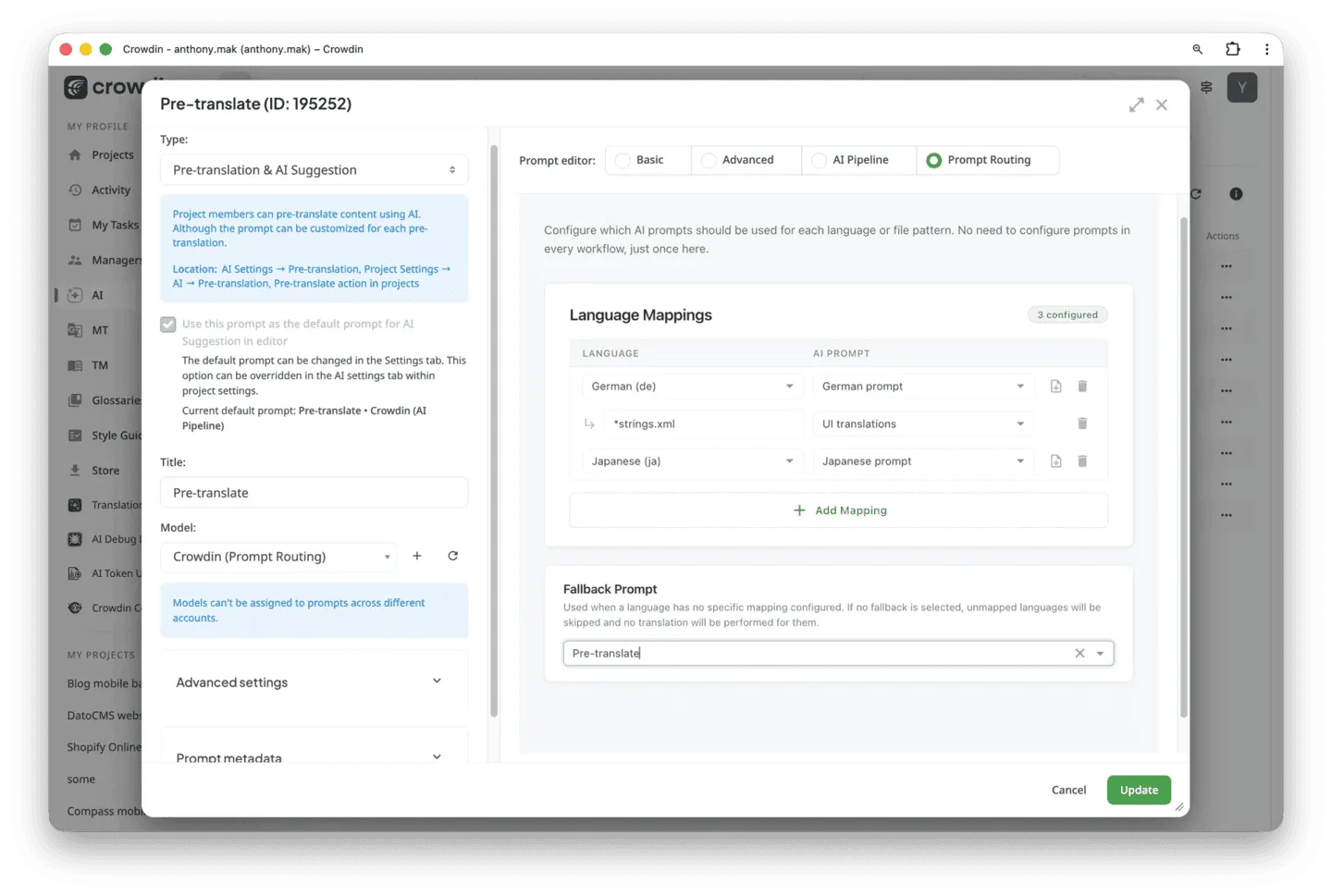
Prompt Routing
With the Prompt Routing app, you can now automatically route content to different instructions based on the file type or target language. This ensures that every string is processed using the exact logic, tone, and formatting rules it needs.
Qualtrics
Translate your Qualtrics surveys in Crowdin and automatically sync the multilingual versions back to your platform without breaking your survey logic.
New File Format: GIFT Quiz Format
We have added support for Moodle-compatible GIFT files so you can localize your quizzes and educational content with ease. It handles the full round-trip and includes a preview feature so you can double-check everything before your students do.
New success stories
Check out our latest case studies to see how teams are actually using Crowdin:
- Snov.io: See how they moved away from manual work and automated their entire localization process to keep up with fast product updates.
- Bitrefill: Learn how they use AI translations to offer a smooth crypto-shopping experience in every language.
Localize your product with Crowdin
Agile Localization Podcast
We have released several new episodes of the Agile Localization podcast, bringing you exclusive insights from Crowdin clients and industry experts.
Latest episodes:
- Diego Cresceri joins us to discuss moving beyond traditional pricing to reinvent the value of localization.
- Mewen Page (Lead Gameplay Programmer at Hypixel Studios) explores the intersection of game development and localization.
- Jourik Ciesielski shares insights on how Translation Management Systems are evolving into intelligent orchestration layers.
- Putri Kumala and Arshaad Mohiadeen from Deriv explain how they transitioned to fully automated AI-driven workflows.
All episodes are available on your favorite streaming platforms.
Other platform updates
- File-level issue tracking. You can now view issues directly next to each file on the project language page. This update provides instant visibility into file status, helping you identify and resolve problems without leaving the list.
- Enhanced Editor navigation. We’ve moved the “Approve” buttons in the Crowdin Editor to a more accessible position right after the “Save” button. This layout change creates a more intuitive workflow for proofreaders and speeds up the review process.
- Branch names in webhooks. Webhook payloads now include the branchName field in addition to the existing project and branch IDs. This is especially useful for “translation suggested” events, allowing for better automation and clearer context for your integrations.
- Microsoft Visio: Crowdin now supports Microsoft Visio (.vsdx) files, allowing you to localize technical diagrams and flowcharts while preserving their original layout and design.
External tools
This month, we released new versions of:
- JS API Client 1.53.0, 1.53.1, 1.53.2, 1.54.0, 1.55.0, 1.55.1
- GitHub Action v2.16.0, v2.16.1, v2.16.2
- Java API Client 1.32.0
- PHP API Client 1.23.0
- CLI 4.14.2
- Crowdin OTA Client 2.1.0
Localize your product with Crowdin
